
Jobs
What it’s for — a Job is one piece of work for one customer at one site. It ties together the crane(s), the crew, the dates, the money, and the paperwork in a single place.
When you’d use it — every time a customer books you for a lift. Once a quote is accepted it becomes a job; you can also create a job directly.
The Jobs list
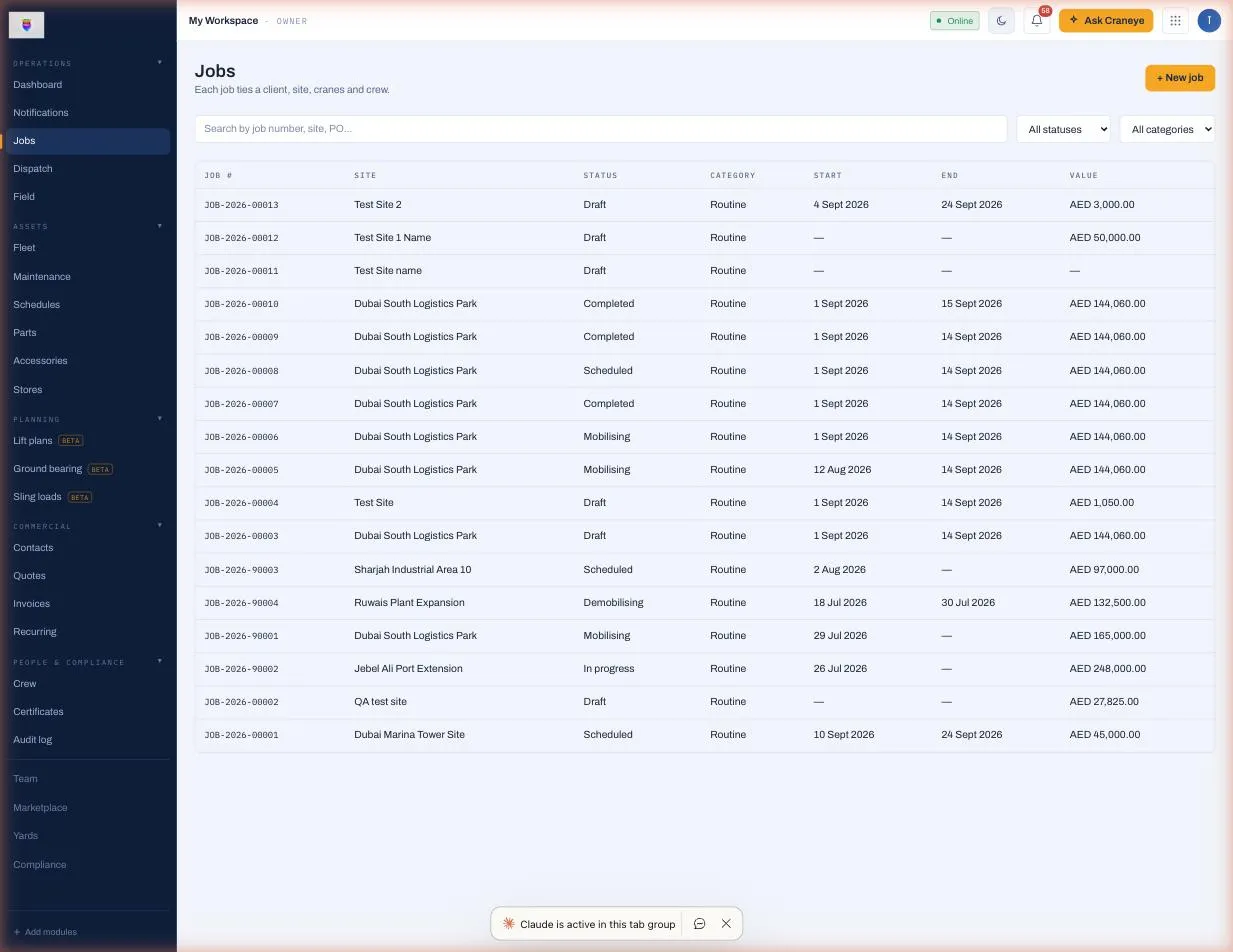
Open Jobs from the sidebar. Each row is one job, showing its number, site, status, dates and value. Use the search box or the status/category filters to find one.
How to create a job
-
On the Jobs list, click + New job (top right).
-
Fill in the basics: the customer, the site, the dates, and how you’re charging (day rate, month rate, or lump sum).
-
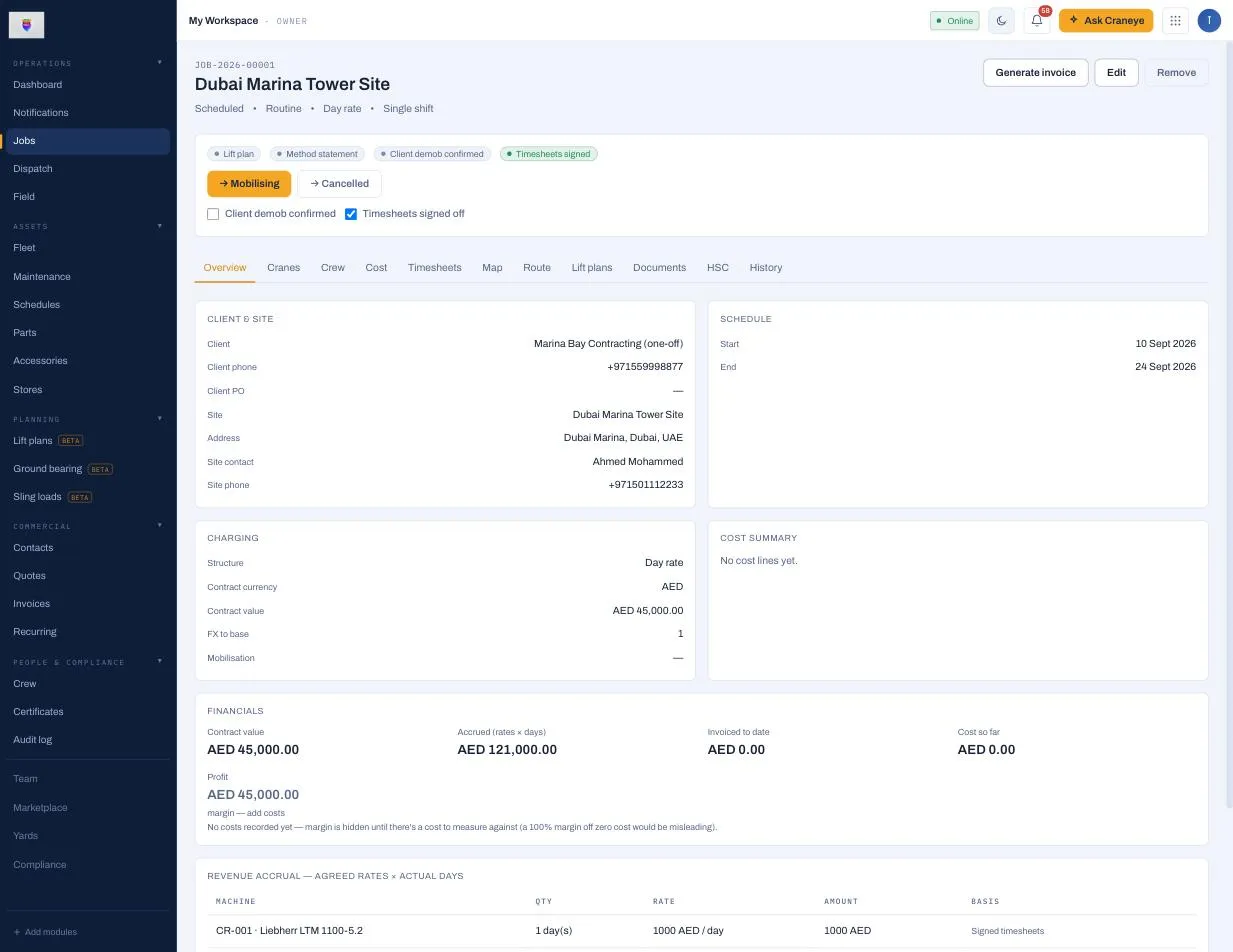
Save. The job opens on its Overview tab, where you can see the client & site, the charging terms, and a live financial summary (contract value, what’s accrued, what’s invoiced, and profit).
How to put a crane on the job (the safety gate)
This is the important part. Assigning a machine isn’t just picking it from a list — Craneye checks that the machine is legal and safe to dispatch first.
-
Open the job and click the Cranes tab.
-
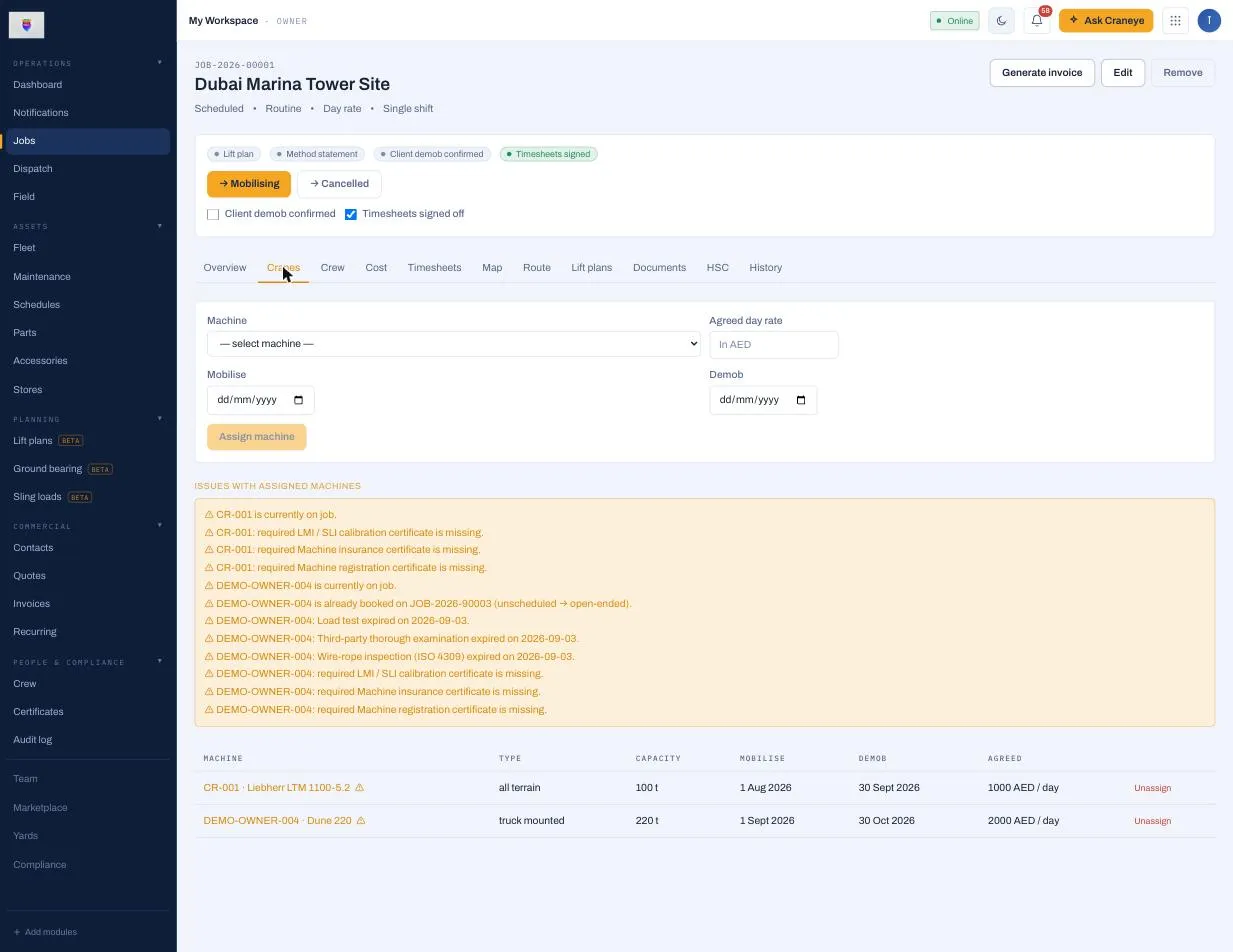
Pick a Machine, set the mobilise/demob dates (and an agreed day rate if you like), then click Assign machine.
-
Craneye runs the safety gate. If the machine has an expired or missing required certificate, an out-of-date registration, or a clashing booking, it shows up under Issues with assigned machines.
Tracking the job
As work progresses, move the job through its statuses (Scheduled → Mobilising → In progress → Demobilising → Completed) using the buttons at the top. The crew log their hours from the Field app; you review timesheets, then Generate invoice when the work is done.
Common questions
- Can one job have more than one crane? Yes — assign as many machines as the job needs; each gets its own dates and rate.
- A machine I need is blocked. Now what? Fix the underlying problem (renew the certificate, resolve the clash), or ask a manager to override with a reason if it’s genuinely safe to proceed.